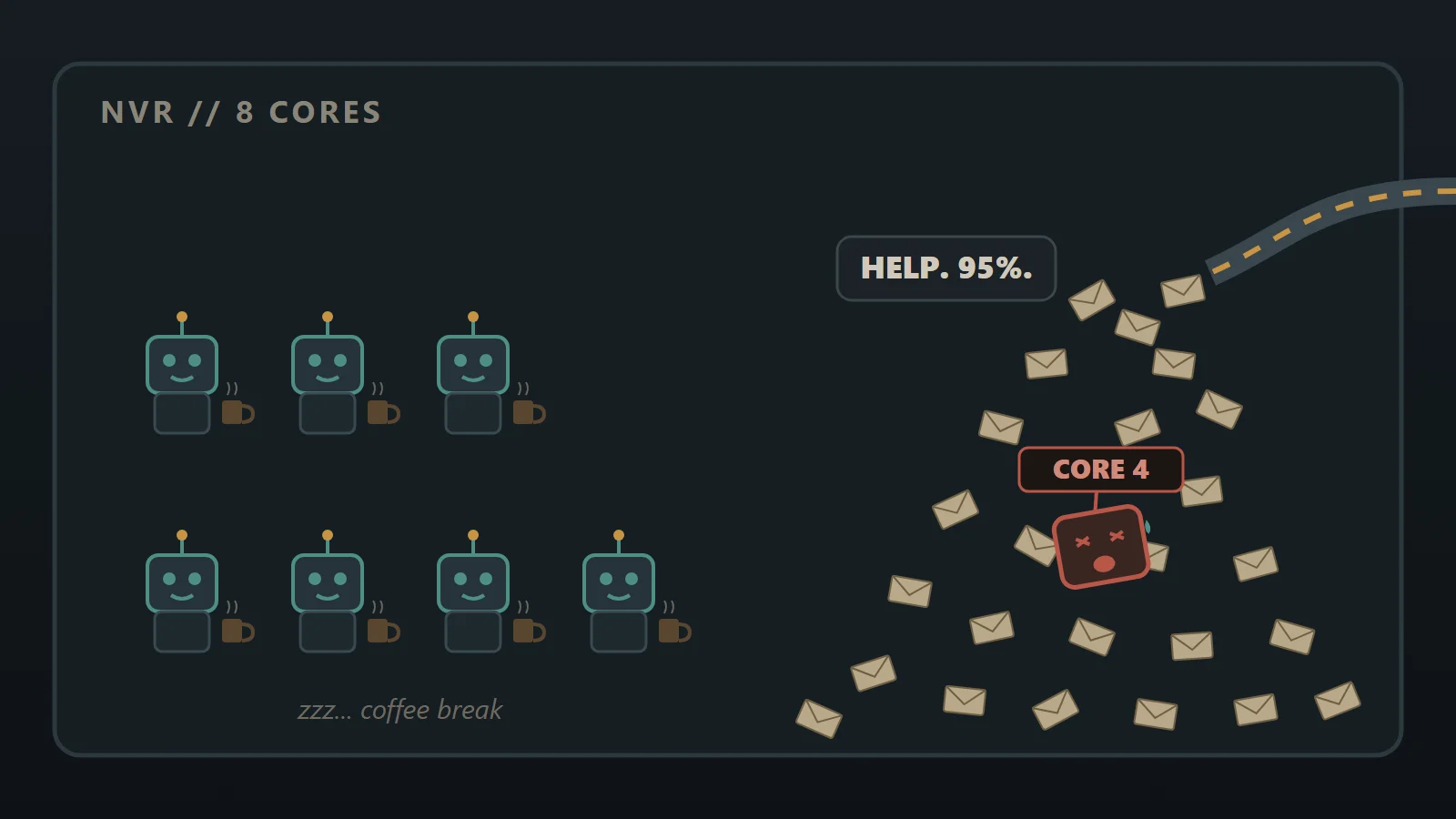
Eight cores in the box. Seven drinking coffee. One drowning. And me, losing my mind.
It started the way it always starts: “The cameras are lagging again.”
Again. Again. I have heard that sentence so many times on this job that I hear it in my sleep.

UniFi Protect live view was freezing, stuttering and loading slowly. On the cloud portal and by direct IP. On a brand-new PC. On a port right next to the NVR. The person watching the cameras had already ruled out everything you’d normally blame, so it was my turn.
Spoiler: it wasn’t the PC, the cable, the switch or the internet. It was one CPU core inside the NVR doing 100% of the network work while the other seven sat around like it was a Sunday.
The setup
- UniFi G2-class NVR (Qualcomm QCS8550 inside, UniFi OS 6.0.x)
- Uplinked on the 10G SFP+ port with a DAC cable
- About 50 cameras, roughly 200 Mbps coming in
- Blue Iris pulling about 90 streams off the NVR around the clock, plus people watching live
That’s a busy NVR, but 200 Mbps on a 10G link is nothing. The link wasn’t the problem.
Step 1: Stop guessing, start logging
Before touching anything I put monitoring on both ends:
- On the NVR: a small script logging every 30 seconds. CPU per core, the network card’s dropped-packet counter, traffic, temperatures, fans, and ping times to the viewer’s PC.
- On the viewer’s PC: a logger plus a rolling packet capture.
- On the viewer’s desktop: a big “Cameras Lagging, Click Here” button. When it freezes, they click it, and it saves the last few minutes of capture with a timestamp.
That button is my favorite trick for “it happens sometimes” problems. Nobody has to remember what time it was.
Step 2: The data pointed straight at the NVR
The PC side was clean. Fast responses, no packet loss to the NVR.
The NVR side was not:
- CPU4 was 90 to 98% busy, almost all of it handling network interrupts.
- The other cores had room to spare.
- The network card was dropping incoming packets every single sample. About 164 per second.
Dropped camera packets mean missing video. Missing video means frozen and stuttering live view, for every viewer, and gaps in Blue Iris too.
So the box had eight cores, and one of them was doing the whole job while the rest stood around the water cooler. I have worked places like that.

Step 3: Why one core?
This is the part that’s actually interesting.
Inside the NVR is a phone-class Qualcomm chip driving a 10G network card through a Toshiba PCIe Ethernet bridge. That card delivers incoming packets through one interrupt, and Ubiquiti pins that interrupt to CPU4 on purpose. They even fence CPU4 off from normal apps at boot so recording and AI never compete with networking. (It shows up as a “thermal pause” flag on CPU4. It is not a heat problem. I chased that for way longer than I want to admit.)

On a lightly loaded NVR, that’s a smart design. Networking gets its own core.
The catch is a Linux feature called RPS, Receive Packet Steering. With RPS on, the core that takes the interrupt can hand the heavier packet processing to other cores. With RPS off, that one core does everything.
Linux ships with RPS off. UniFi doesn’t turn it on. So one mid-size core is a hard ceiling for how much camera traffic the box can take in. Fifty cameras plus Blue Iris plus live viewers blew right through it.
An 8-core box, sold to record dozens of cameras, with the setting that spreads the network load turned off out of the box. Cool. Love that for us.

You can check yours over SSH:
cat /sys/class/net/eth1/queues/rx-*/rps_cpus
All 00 means RPS is off. Mine were all 00.
Step 4: The fix
One short loop, live, no reboot:
cd /sys/class/net/eth1/queues
for q in rx-*; do
  echo 0f > $q/rps_cpus
done
0f is a bitmask for CPUs 0 through 3. CPU4 still takes the interrupt, but now it passes the heavy lifting to four other cores.
That’s it. That’s the fix. Weeks of “it’s lagging again” and the answer was one line of shell.

I armed a rollback before touching it, applied it during business hours with cameras recording, and nothing went offline.
Undo is just as short:
cd /sys/class/net/eth1/queues
for q in rx-*; do
  echo 00 > $q/rps_cpus
done
Step 5: Prove it, don’t just feel it
“Seems better” isn’t proof. So I ran an A/B test: pulled 9 high-quality camera streams from the viewer’s PC and flipped RPS on, off, and on again, two minutes each.
| RPS | Drops | Stalls | Worst |
|---|---|---|---|
| on | 60 | 0 | 0.24 s |
| off | 66,145 | 126 | 1.83 s |
| on | 37 | 0 | 0.23 s |
Stalls = video gaps over 300 ms. With RPS off, 10 of them lasted over a full second.
Turn RPS off and I could reproduce their freezes on demand. Turn it on and they vanished. I felt like a mad scientist. A very tired, very annoyed mad scientist.

The longer before and after:
| Before | After | |
|---|---|---|
| Dropped packets | ~164 per second | ~0.4 per second |
| Ping from viewer to NVR (95th percentile) | 12.7 ms | 1.0 ms |
| Traffic | same | same |
That’s about a 99.7% drop in lost packets. Then we loaded it for real: Blue Iris plus UniFi showing every camera at once. Both “working really well,” in the client’s words.
Making it stick
A setting in /sys resets on reboot. So I added a tiny systemd service that sets the mask at boot. On these boxes the root filesystem is an overlay, so the service survives a reboot.
But a firmware update may wipe it. After any UniFi OS update, run the cat command above again. If it’s back to 00, put it back. I fully expect to be writing “the cameras are lagging again, part 2” someday because of this.
Things that looked scary but weren’t
- “Thermal pause” on CPU4: that’s the network driver reserving the core on purpose, not overheating.
- CPU temps in the 80s and 90s C: normal for this chip. The real trip point is 108 C.
- Fans running slow: UniFi’s fan daemon follows the board sensors, not the CPU. Working as designed. Don’t fight it.
I checked my own NVR too
My home NVR, same model family, had the exact same setup: interrupt pinned to CPU4, RPS off. With 21 cameras it was using about 78% of that core. Not hurting yet, but heading there. I turned RPS on there too (mask 6f, which also uses two of the faster cores), and CPU4’s softirq load dropped from 24% to 17% with zero drops.
One honest limit: RPS only moves the processing half of the work. The interrupt itself still lands on CPU4, and that part can’t be spread on this hardware. So RPS buys real headroom, it doesn’t make the ceiling go away. If you’re adding a lot of cameras, it also helps to have Blue Iris pull sub-streams or pull from the cameras directly instead of through the NVR.
The short version
If your UniFi Protect live view stutters on a busy G2-class NVR and you’ve already blamed the PC, the cable and the switch:
- SSH in and check
rps_cpuson eth1. - Look at per-core CPU. If one core is pegged and the rest are bored, that’s it.
- Turn on RPS, test it, and keep the undo command handy.
- Re-check after every firmware update.
This is an unsupported tweak to a box Ubiquiti manages, so do it with a rollback ready and at your own risk. But it took a “cameras are lagging” ticket from weeks of frustration to a one-line fix. And now the seven lazy cores finally have to work for a living.
Got a stubborn tech problem like this? Text or email me: 719-530-4040 or [email protected]. More at kccsonline.com.